Overview
IntelliVoice offers four different methods to create and manage your voicemail greetings. Choose the option that works best for you.
Option 1: Have the System Call You
This is the easiest method for recording a greeting using your phone.
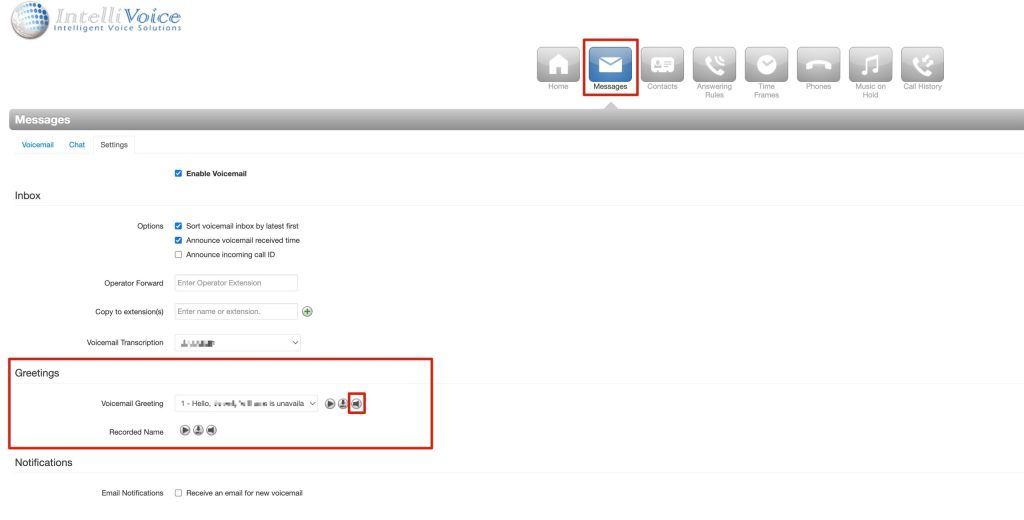
- Log in to the FusionUC Portal
- Navigate to your voicemail settings
- Select Record Greeting
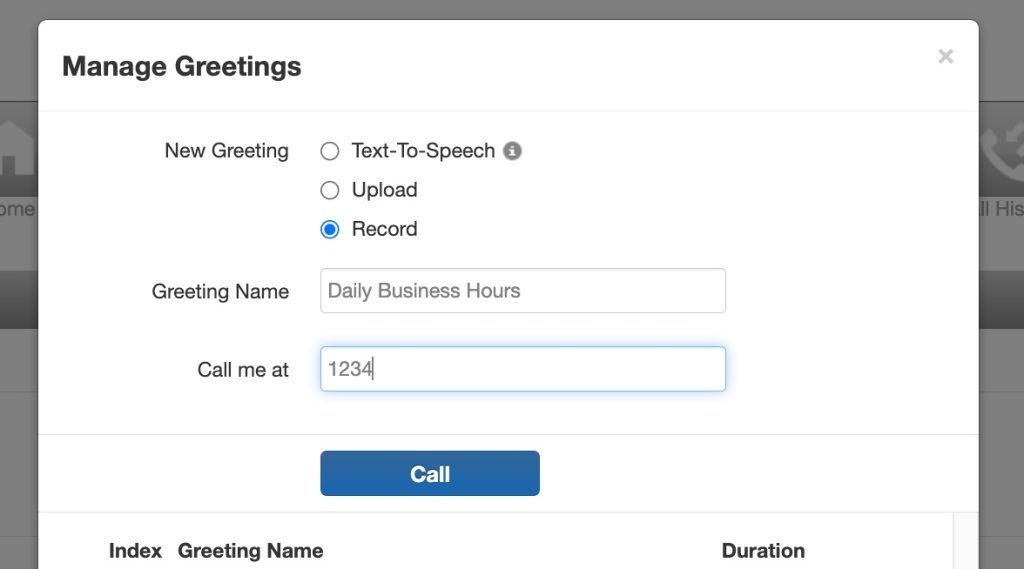
- Choose Call Me to Record
- Enter your phone number and click Call
- Answer the incoming call and follow the prompts to record your greeting
- Press the appropriate key to save your recording when finished
Tip: This is ideal if you're away from your desk or prefer using a specific device to record.
Option 2: Record via Voicemail Access
You can record your greeting directly from any phone connected to the IntelliVoice system.
- From your desk phone, dial
5001to access your voicemail - Enter your voicemail PIN when prompted
- Press
6to access greeting options - Follow the voice prompts to record, review, and save your greeting
Tip: You can also access voicemail by dialing *97 from your extension.
Option 3: Upload a Pre-Recorded File
If you have a professionally recorded greeting, you can upload it directly to the system.
- Log in to the FusionUC Portal
- Navigate to your voicemail settings
- Select Upload Greeting
- Click Choose File and select your audio file
- Click Upload to save your greeting
Supported file formats:
- WAV (recommended)
- MP3
For best quality, use WAV files with 8kHz or 16kHz sampling rate, mono channel.
Option 4: Text-to-Speech
Generate a greeting using our text-to-speech engine without recording.
- Log in to the FusionUC Portal
- Navigate to your voicemail settings
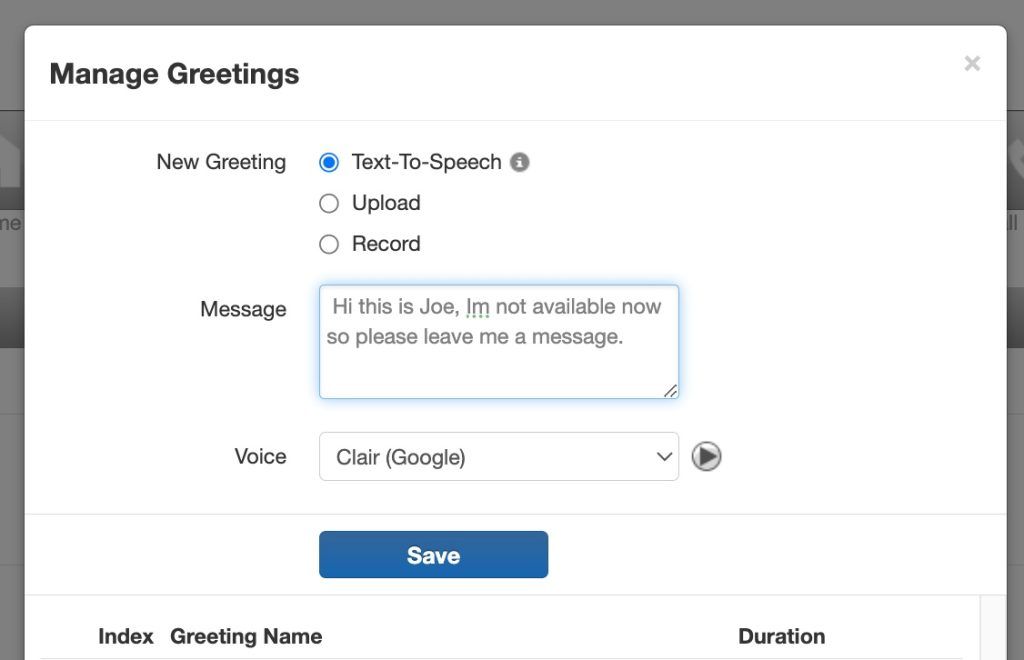
- Select Text-to-Speech
- Type your greeting message in the text box
- Select a voice style (male/female, accent options)
- Click Preview to listen to the generated greeting
- Click Save when satisfied with the result
Tip: Great for quick updates or multilingual greetings.
Managing Multiple Greetings
You can create and manage multiple greetings for different scenarios.
In the FusionUC Portal
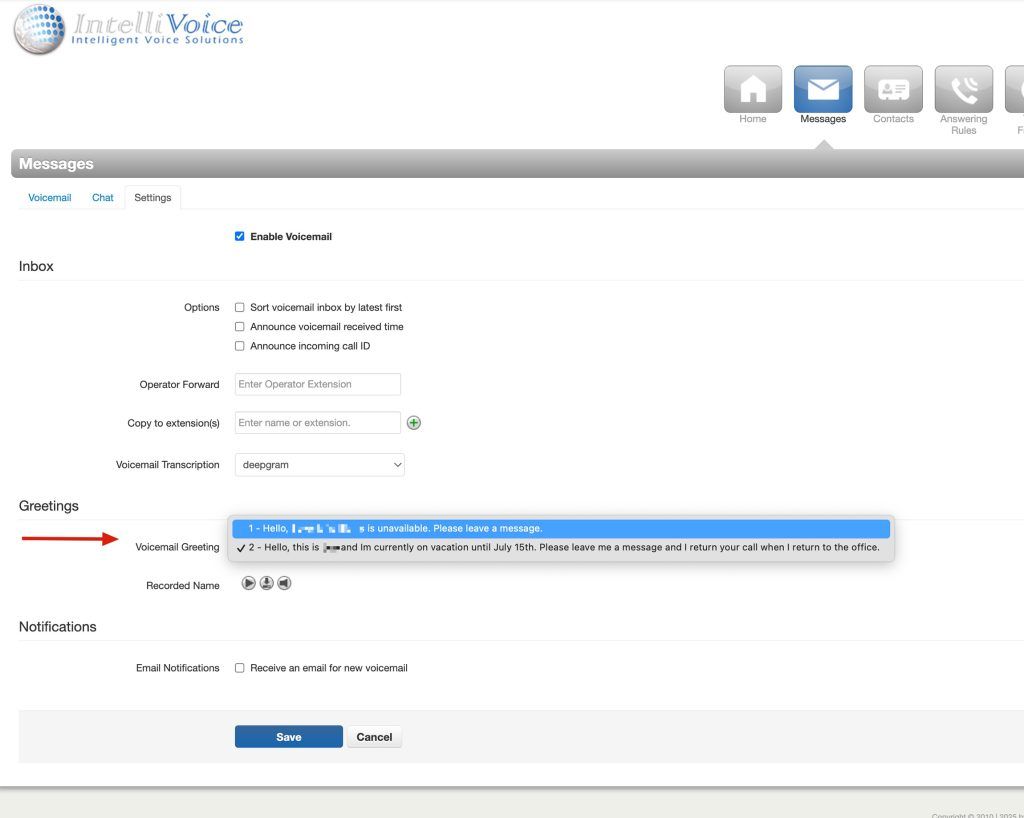
You can switch between multiple greetings by selecting the down arrow as shown below:
- Navigate to Voicemail > Greetings
- View all your saved greetings
- Set which greeting is active (e.g., standard, vacation, after-hours)
- Delete or update existing greetings
- Schedule greetings to activate at specific times
In the FusionUC Mobile App
You can also change the active greeting in the FusionUC App by selecting the 3 bars on the bottom right and then the Greetings option:
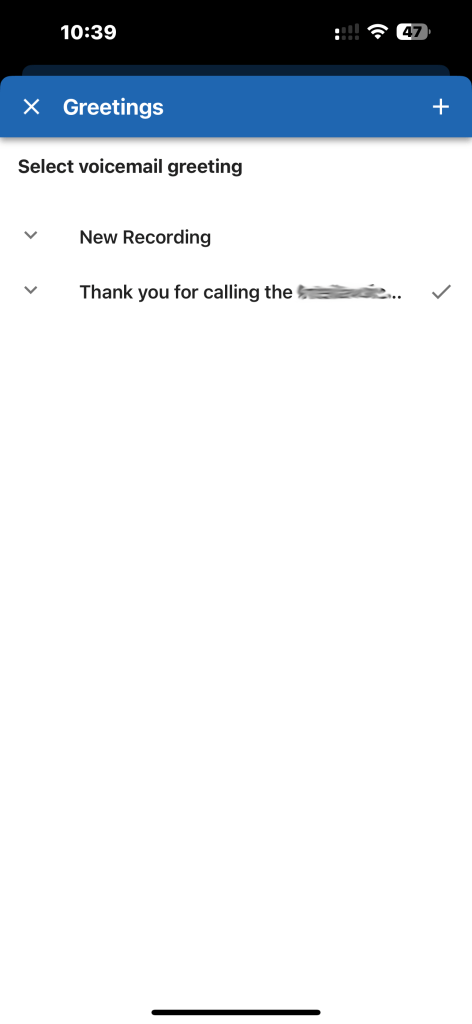
- Open the FusionUC app on your iOS or Android device
- Tap the menu (3 bars) on the bottom right
- Select Greetings to view and manage your greetings
- Record new greetings directly from your mobile device
- Switch between active greetings with a single tap
Tips for Professional Greetings
- Keep greetings concise (15-30 seconds is ideal)
- Speak clearly and at a moderate pace
- Include your name and company name
- Mention alternative contact methods if urgent
- Update your greeting for vacations or extended absences