Overview
Your display name in the FusionUC Portal is used throughout the system—it appears in the directory, on caller ID for internal calls, in chat/messaging, and in call logs. You can update your first and last name from your profile settings.
Step-by-Step Instructions
Step 1: Log Into the FusionUC Portal
Open your web browser and navigate to the FusionUC Portal at ezportal.tel. Enter your email address and password to log in.

If you don't know your password, use the "Forgot Password" link to reset it.
Step 2: Click Your Username
Once logged in, look at the upper right corner of the portal screen. You should see your name or username displayed there. Click on your username to open the account menu.

Step 3: Click Profile
In the dropdown menu that appears, click on Profile. This will take you to your user profile settings page.

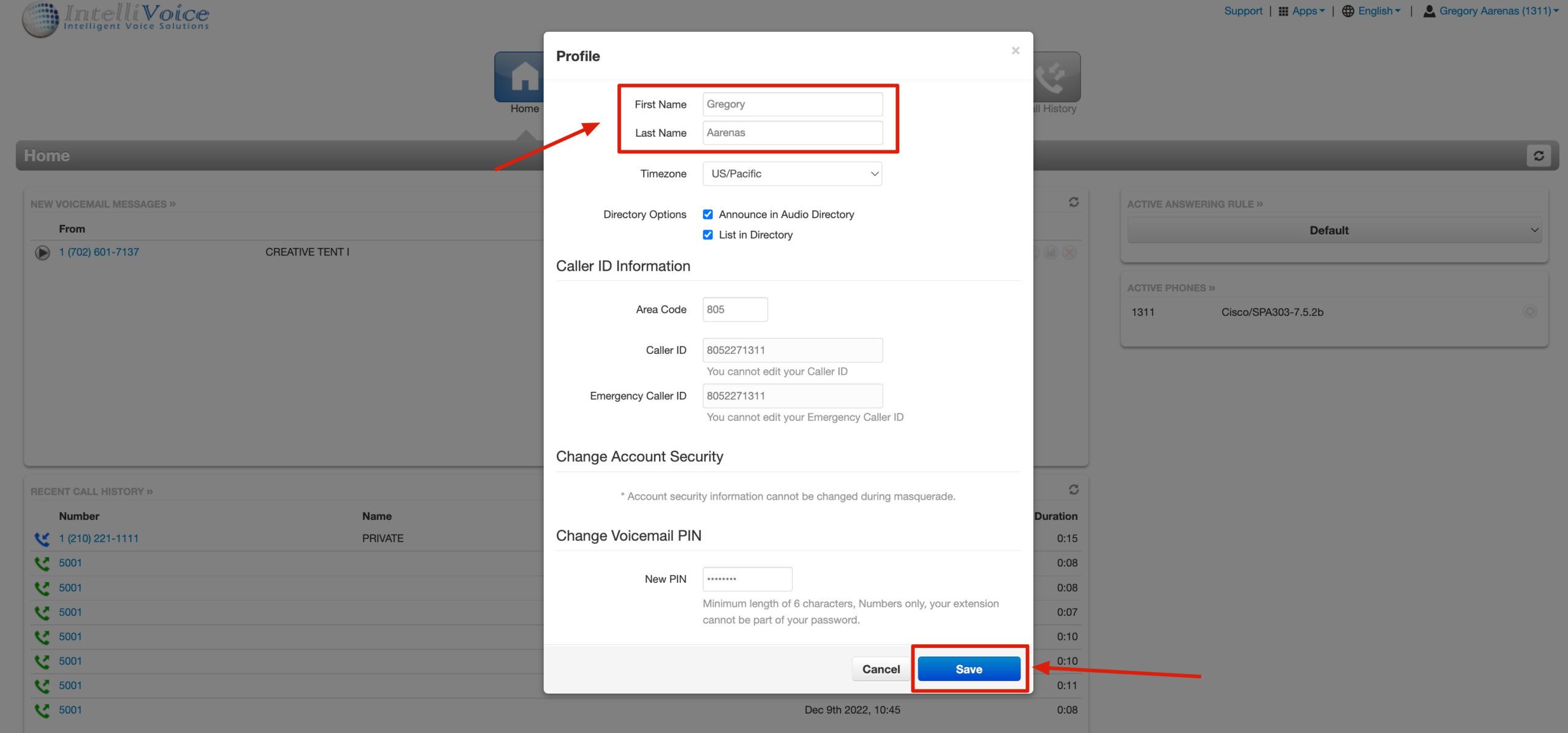
Step 4: Update Your Name and Save
On the Profile page, you will see fields for your account information including:
- First Name
- Last Name
Update these fields with your desired name. When finished, click the Save button to apply your changes.
What Gets Updated
After changing your name, the following will reflect your new display name:
- Company directory listings
- Internal caller ID when calling other extensions
- FusionUC mobile app display
- Chat and messaging contacts
- Call history and logs
- Voicemail notifications (if name-based)
Note: Changes may take a few minutes to propagate throughout the system. If you don't see changes immediately, wait 5-10 minutes and refresh.
What You Cannot Change
The following require administrator access to modify:
- Your extension number
- Your email address / username
- External caller ID (the number/name shown when calling outside numbers)
- Department or group assignments
If you need to change any of these, contact your office administrator or IntelliVoice support.